Convert PNG to SVG for Silhouette Studio.
Turn your logo or cut design into an SVG, then choose the right route for your Studio edition and check the finished size. Start with a clean PNG or JPG; the converter is below.
Silhouette Studio Designer Edition and above can open an SVG: drop your image here and download the traced SVG free, without an account. In Studio Basic, use the free built-in Trace tool on your PNG or JPG instead. Studio also supports some DXF files, but we have not tested pic2svg's DXF in Studio; the measurements below describe the files, not a successful import. Starting from a photo or scan, see JPG to SVG; for several designs at once, use the batch converter.
Trace preset:Balanced▼
Applies to images you add next — each one traces as it lands.
The SVG download is free — no account needed.
Transparent areas become white shapes, and larger images are scaled down to about 0.6 megapixels before tracing.
Your image is uploaded to pic2svg's own server to be traced. What we keep, and for how long
Other formats, plans and licences
PDF, EPS, AI (EPS-based) and DXF come with a paid plan, and every new account gets 7 days of Pro free. The free plan and Starter carry a personal-use licence; commercial use needs Pro, and resale needs Advanced — see the licence row on the pricing page.
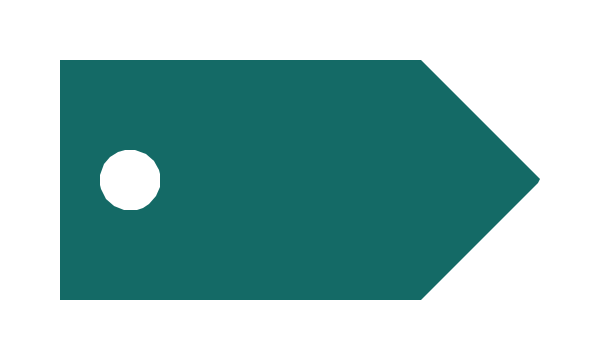
A gift tag with a hole, measured from the files
This single-colour tag was drawn for this page on a transparent 600 × 360 px canvas. On 25 October 2026 we simulated the browser upload with Pillow, then ran the real engine with the production flags and Balanced preset. This is a file test, not a Silhouette Studio import test.
Transparent PNG → Balanced SVG

Which Silhouette Studio edition opens which file?
Opening an SVG and exporting one are different features: opening requires Designer Edition or above; Business Edition can export SVG, with restrictions for Design Store content. This table follows Silhouette's import and export article, modified 23 September 2026. It describes DXF support generally, without an edition-by-edition matrix; “not stated” is not a compatibility promise.
| Edition | Open SVG | Open DXF | Export SVG |
|---|---|---|---|
| Basic | No | Not stated | Not stated |
| Designer | Yes | Not stated | Not stated |
| Designer Plus | Yes | Not stated | Not stated |
| Business | Yes | Not stated | Yes |
Using Basic? Try Studio's free Trace first
A clean, high-contrast logo is enough
Studio's built-in Trace is free and enough for clean, high-contrast logos. Open your image, open the Trace panel, select the trace area and adjust the yellow preview. Choose Trace to include inner details such as the tag's hole; Trace Outer Edge only follows the outside. See Silhouette's Trace instructions.
When an SVG from pic2svg is useful
Use pic2svg when you want colour layers, an SVG to reuse in other apps, or an SVG to open in Studio Designer or above. We have not measured it against Studio Trace, so this is a choice of workflow, not a claim of better tracing.
What size will the SVG be?
72-DPI arithmetic, not an observed import
Derived sizing: pic2svg SVGs use unitless pixel sizes, so at Silhouette Studio's stated 72 DPI a 600 px-wide canvas corresponds to 8.33 inches; set the artwork's intended width with Studio's sizing controls before cutting. Silhouette's article says SVG files need a default rate of 72 DPI to retain size. Our example has unitless pixel dimensions. Applying that rule gives a full canvas of 600 ÷ 72 = 8.333 inches (211.67 mm) by 360 ÷ 72 = 5 inches (127 mm). These values are derived from the article, not measured in Studio, and include the empty margin around the tag.
Set the artwork's width after opening
Select the artwork you intend to cut, excluding the canvas background. In Studio, open Transform → Scale, lock the aspect ratio, enter your desired width and click Apply. For a 100 mm tag, check the selection is 100 mm wide before sending it to the cutter. These controls follow Silhouette's exact-size instructions.
DXF measurements: what the files contain
Both exports use AutoCAD R2010 (AC1024), LWPOLYLINE entities and a millimetre header ($INSUNITS = 4). These are measurements read back with ezdxf, not imported sizes in Studio. The width is the artwork's extent, excluding the canvas margin.
| Export setting | Artwork extent | Hole extent | Closed polylines |
|---|---|---|---|
| Default DXF — width left empty | 127 × 63.5 mm | 15.875 × 15.875 mm | 2 |
| DXF width set to 100 mm | 100 × 50 mm | 12.5 × 12.5 mm | 2 |
DXF support is not an import guarantee
The official entity list differs
Silhouette's article, modified 23 September 2026, lists Arc, Circle, Ellipse, Line, “DWPolyline”, Spline and Text. Our file contains LWPOLYLINE in an R2010 file; we have not established that the article's “DWPolyline” means this entity. It also recommends R13/LT95 for Illustrator exports. We have not tested these downloads in Studio Basic.
Check size again in Studio
The article says DXF does not keep its size on import. Its Center/Fit import options help visibility, not original-size recovery. Inspect the measured default DXF and 100 mm DXF. Our width setting proves the exported file's width only; it does not prove that Studio honours its units. For the DXF export itself, see the image to DXF converter.
Check the shapes before cutting
Background, colour layers and white areas
Remove the SVG's canvas background, inspect overlapping colour shapes and check white details that may merge with the background. Our Cricut cleanup guide explains these shared tracing behaviours; inspect the tag's hole and cut preview in Studio before using material. If you specifically need separate SVG files, split the artwork into ordered color passes to keep repeated white shapes in their original paint order.
Silhouette Studio conversion questions
- Can I use my PNG in Studio Basic without an upgrade?
- Yes. Open the PNG and use Studio's free Trace feature to create cut lines. Silhouette also documents automatic tracing for transparent PNGs when Autotrace is enabled under Import preferences. A clean, high-contrast design is the easiest starting point; see Basic Edition features.
- Do I need Business Edition to open an SVG?
- No. Silhouette's import article says Designer Edition or above can open SVG. It separately confirms SVG export in Business Edition, with restrictions for Design Store content. Downloading an SVG from pic2svg does not require Studio's SVG export feature.
- Is the conversion free, and which downloads need an account?
- The SVG is free without an account. DXF is included in Pro and Advanced, not Starter. A new free account starts a 7-day Pro trial with no card; see plans. That is access to the export format, not proof that its DXF opens correctly in Studio.
- Why did my SVG appear outside Studio's cutting area?
- Silhouette says SVG placement follows the positions in the original file. Its documented workaround is Edit → Preferences → Import, then choose Centered for the SVG Document Position. Check the selected artwork's dimensions afterwards; placement guidance is separate from sizing.
Related converters and guides
Image to DXF
Export a trace as AutoCAD R2010 polylines for CAD, CNC and laser software.
Batch convert
Image to SVG for Cricut